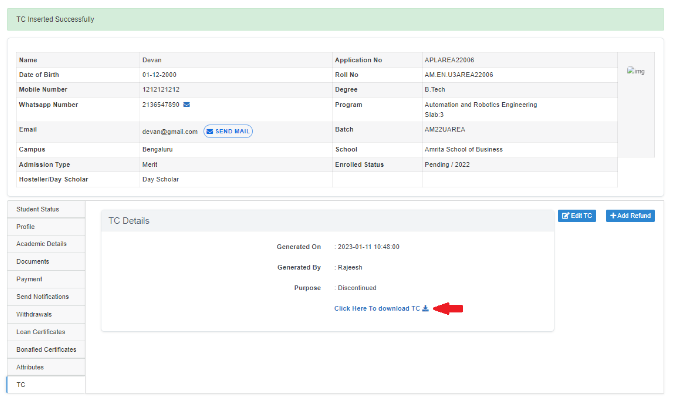
How to issue a TC of a student?
Introduction
As we all know Admissions and related work are a laborious process. Different departments need to work together in this process. To overcome this hassle, we have come up with the Administration portal which is designed to simplify and curtail various time-consuming admissions-related works. Here this document illustrates how to issue a TC.
Getting Started
Open an internet browser (Recommended to use Google Chrome)
Type https://my.amrita.edu/ and click enter
Login with your Amrita email id and password.
Click the ADMIN portal.
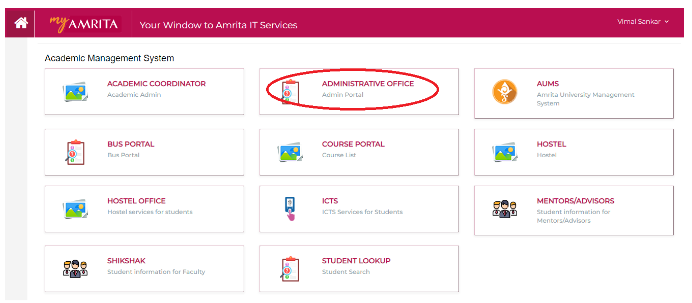
Click on the admin from the side menu
Select the Batch list from the sub menu
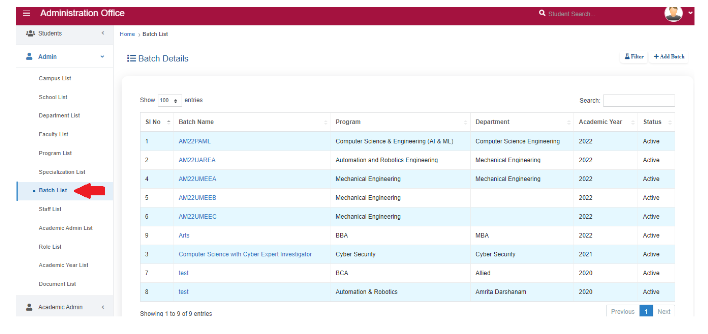
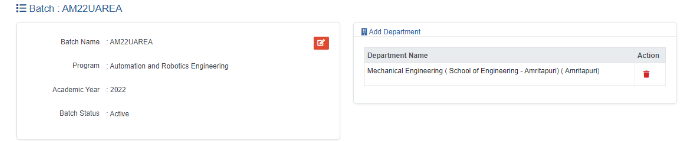
Click on any of the Active batch, which have the students.
Click on the students, whose TC has to configure.

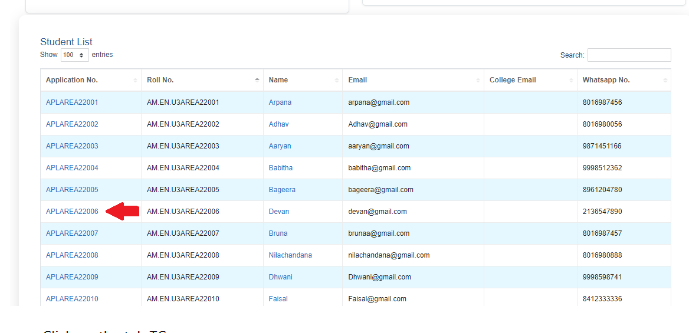
Click on the tab TC.
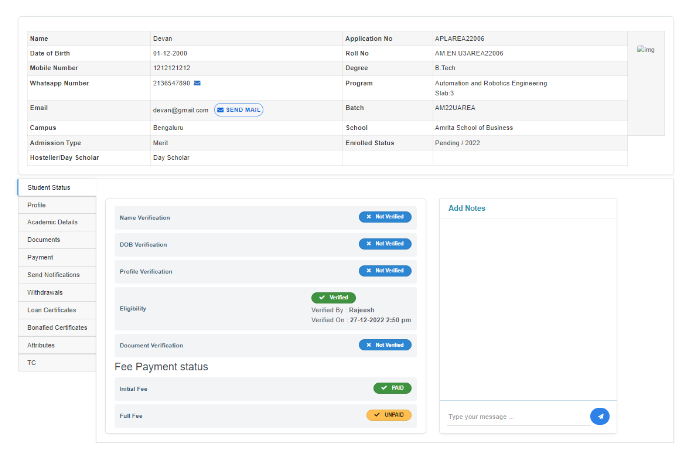
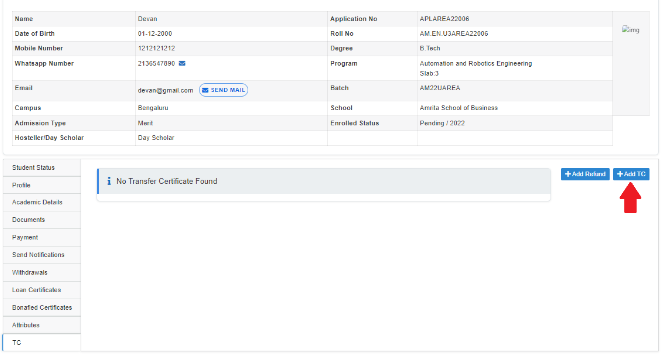
Click on Add TC button.
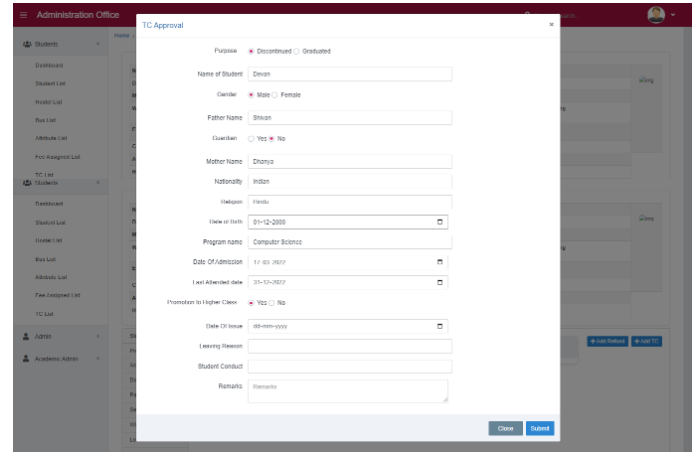
Edit the required details
Enter the date of issue, leaving reason, student conduct and remarks.
Click on the link to download the TC document